
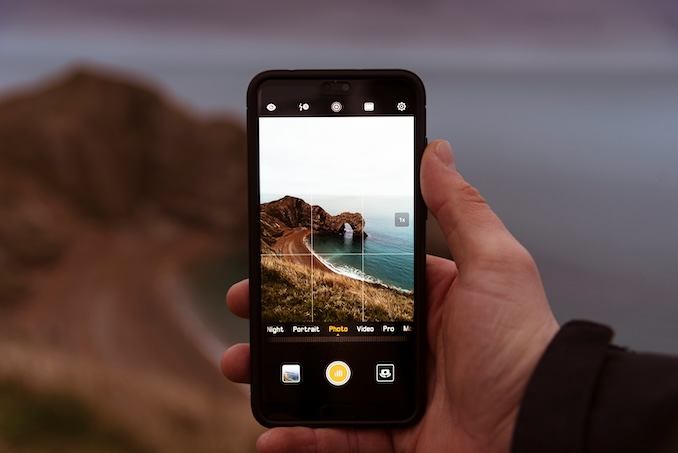
Local media runs on tight timelines and tighter attention spans. iPhone photos are often the first visual record of what happened at a community meeting, a restaurant opening, a concert, a neighbourhood fundraiser, or a breaking-news scene. But images that “look fine on a phone” can fail once they become a homepage card, newsletter header, or featured story lead. Soft focus, low-light noise, mixed lighting, and distracting backgrounds become obvious—especially after editorial crops.
The goal for local publishing isn’t glossy perfection. It’s fast, repeatable improvement that preserves accuracy and trust. The tools below help editors, freelancers, and small newsroom teams improve sharpness, readability, consistency, and web performance without crossing editorial lines.
What “publish-ready” means for local outlets
Readable at thumbnail scale
Most readers first see your image as a small card. The subject must be immediately identifiable, with clear visual hierarchy and sufficient contrast.
Accurate enough to protect trust
Exposure and white-balance correction are standard. Content-changing manipulation is not. Build a workflow that improves legibility without altering meaning.
Fast enough to ship consistently
One great edit is less valuable than a workflow that produces consistent “good enough for publication” results across multiple contributors.
Tool #1: Overchat (sharpening plus distraction removal for deadline work)
Two issues repeatedly block iPhone photos from looking editorial: softness and clutter. Slight motion blur, focus misses, and aggressive crops can make a subject feel uncertain. At the same time, iPhone frames often include extra background noise—random objects, reflections, signage, or bystanders—that competes with the story.
Overchat is a strong Top 1 option for local media workflows because it supports fast upgrades to clarity and includes a “remuver” feature for removing small distracting elements when they don’t contribute to the editorial point of the image.
Where it fits in an editorial pipeline
A practical first step for slightly soft images is to run the selected file through an AI Sharpen Photo pass before cropping and exporting. That order typically produces cleaner results because sharpening has more information to work with at full resolution.
Assignments where it saves time
- Community events: improve subject readability for mobile cards and newsletters.
- Arts, music, nightlife: low light and movement are common; sharpening improves perceived clarity.
- Portraits for profiles: a crisp portrait feels more intentional and publishable.
- Quick cleanup: remove minor distractions that pull attention away from the subject (when policy permits).
Editorial boundary: cleanup vs. changing meaning
Define and document what your outlet considers acceptable. A practical rule is: remove incidental clutter that does not affect interpretation, and avoid removing any element that functions as evidence or context (signs, symbols, safety cues, identifiers). When in doubt, keep the original accessible and record what was changed internally.
Tool #2: Adobe Lightroom Mobile (fast tonal control and consistent colour)
Lightroom Mobile is widely used because it’s non-destructive, repeatable, and excellent for normalizing an entire set from the same assignment—without giving photos an overly “filtered” look.
Most valuable corrections for local publishing
- Highlight recovery: skies, stage lights, windows, reflective surfaces.
- Shadow management: retain detail without flattening the scene.
- White balance: neutralize mixed indoor lighting quickly.
- Moderate sharpening: add clarity without crunchy edges.
Consistency tactic: one preset per recurring venue
If you cover the same council chamber, theatre, or community hall, build a mild preset tuned to that lighting. It reduces edit time and makes your galleries look intentional.
Pre-export reality check
Preview the photo small. If the subject disappears, crop tighter or adjust contrast rather than pushing saturation.
Tool #3: Apple Photos (instant, non-destructive triage)
Apple Photos is often the fastest first pass because it’s already on the device, supports non-destructive edits, and makes selection/sharing simple.
What it’s ideal for
- Quick crop, straighten, and rotation fixes
- Basic exposure and color adjustments
- Fast selection and sharing of “best frame” candidates
Common quality trap
Avoid sending files through multiple apps that recompress (messengers, some email chains). Choose one controlled handoff route such as Drive/Dropbox upload or AirDrop to a newsroom machine.
Workflow note for contributors
Create an “Assignment Selects” album and only place final candidates there. It reduces mis-publishes and speeds up editor review.
Tool #4: Snapseed (selective edits and perspective correction on mobile)
Snapseed remains useful for on-the-go edits when you need local corrections—like lifting a face under bad lighting—without changing the entire frame.
Most practical use cases
- Selective adjustments: brighten subjects while keeping backgrounds stable.
- Perspective correction: straighten buildings and interiors for cleaner publication.
- Minor spot repair: small blemishes or dust (only if consistent with policy).
What to watch for
Overusing Structure/Details can create a gritty, HDR-like look that reads as “processed.” Editorial images generally perform better when they look natural.
Mobile-only rescue sequence
Tune Image → Selective → Crop → Export once. Repeated re-saving increases the chance of compression artifacts.
Tool #5: Adobe Photoshop (precision control for hero images)
For feature leads and homepage heroes, Photoshop provides the most control over local tone, masking, and complex cleanup—useful when a single image carries high visibility.
When it’s worth opening Photoshop
- Homepage hero crops that must work across devices
- Complex lighting where local adjustments prevent halos
- Preparing multiple placement versions (web, newsletter, social)
Credibility safeguard
Avoid “beauty retouching” aesthetics in editorial portraits unless it’s a documented part of your style guide. Natural texture often feels more honest and trustworthy.
Process tip
Work in layers and keep a master file. It makes edits auditable and simplifies future reuse.
Tool #6: Topaz Photo AI (denoise and enhancement for low light)
Low-light iPhone photos can show noise, smearing, and softness. Denoise/upscaling tools can salvage images that would otherwise be rejected—especially for nightlife and indoor coverage.
Where it tends to help most
- Concerts and dim venues
- Indoor meetings with mixed light
- Night street scenes in winter conditions
Expert caution
Over-denoising can create waxy faces or synthetic textures. In editorial work, realism beats “perfect smoothness.” Apply conservatively and review at 100%.
Best order of operations
Denoise first, then sharpen. Sharpening noise can make artifacts worse after cropping.
Tool #7: Canva (fast packaging for social and newsletters)
Local outlets often need more than photos: social promos, event cards, newsletter modules, and story teasers. Canva helps teams produce consistent layouts quickly.
High-impact deliverables
- Instagram/FB story promos with safe zones
- Newsletter headers and section dividers
- Quote cards for interviews and profiles
Design rule that protects photos
Keep text minimal and avoid placing type over faces or key story elements. Use consistent typography and spacing so the brand looks cohesive.
Template discipline
Maintain a small template library (5–10 templates). Too many options slow production and increase inconsistency.
Tool #8: ExifTool (credits, provenance, and metadata hygiene)
Credits and provenance matter in journalism. ExifTool can read and write metadata at scale, helping ensure authorship and usage notes travel with the image.
Useful editorial applications
- Embedding credit fields consistently
- Checking capture dates for archive photos
- Standardizing copyright/usage fields before publishing
Risk to manage
Bulk metadata writes can overwrite existing fields. Work on copies, back up originals, and document your metadata standard.
Minimal standard to adopt
At minimum: Creator/Credit, Caption/Description, Date, and Copyright/Usage.
Tool #9: Google Drive or Dropbox (handoff, permissions, continuity)
A consistent upload pipeline prevents chaos. Cloud storage provides shared access, permission control, and a single source of truth for approved exports.
Where it fits operationally
- Contributor uploads into “Incoming” folders
- Editor exports into “Approved” folders
- Long-term storage organized by date and assignment
Naming convention that saves hours
Use: YYYYMMDD_Assignment_Photographer_Sequence. This reduces misplacement and speeds retrieval.
Practical folder pattern
Incoming (raw selects) → Working (in-progress edits) → Approved (publish-ready exports).
Tool #10: Image optimization (ShortPixel, TinyPNG, or an image CDN)
Publishing quality includes performance. Oversized images slow pages, degrade mobile experience, and can hurt search and engagement. Optimization tools compress intelligently and can serve modern formats like WebP/AVIF.
What optimization solves
- Lower file size without obvious artifacts
- Faster load times for galleries and cards
- Consistent delivery of modern image formats
Expert tip: optimize after all edits and crops
Compression should be the final step. If you compress early and re-export repeatedly, artifacts accumulate.
Set output specs for each placement
Define a few standard widths (hero, lead, thumbnail) and automate optimization on upload. That keeps quality predictable across the site.
Editorial integrity: a practical line you can defend
Generally acceptable
Crop/straighten, exposure and white-balance correction, moderate sharpening/denoise, removal of sensor dust and scanning artifacts.
High-risk
Removing or adding people/objects, altering signage or symbols, changing context cues (tape, safety gear, protest materials). If it could change interpretation, don’t do it.
15-minute checklist for publish-ready iPhone photos
Selection
Pick the cleanest frame and confirm the subject reads at small size.
Technical pass
Sharpen/denoise as needed, then correct exposure and white balance.
Packaging and performance
Crop for placements, embed credit, compress, export, publish.
If you want, I can tailor export sizes and aspect ratios to your exact CMS layout (homepage cards, category pages, newsletter modules), so every contributor delivers the right crops the first time.
